IO
IO (Input/Output) ports on the NexusIM gateway connect to and exchange data with southbound devices through ADC (Analog Input), DI (Digital Input), and DO (Digital Output) interfaces.
Use IO settings to read and control data through these interfaces.
Go to Sensor Data > Devices and Rules > IO to view and configure IO settings.
ADC Setting
ADC (Analog-to-Digital Converter) converts continuous analog input signals into discrete digital values. The NexusIM NXG3 gateway, for example, provides three ADC channels for analog input devices.
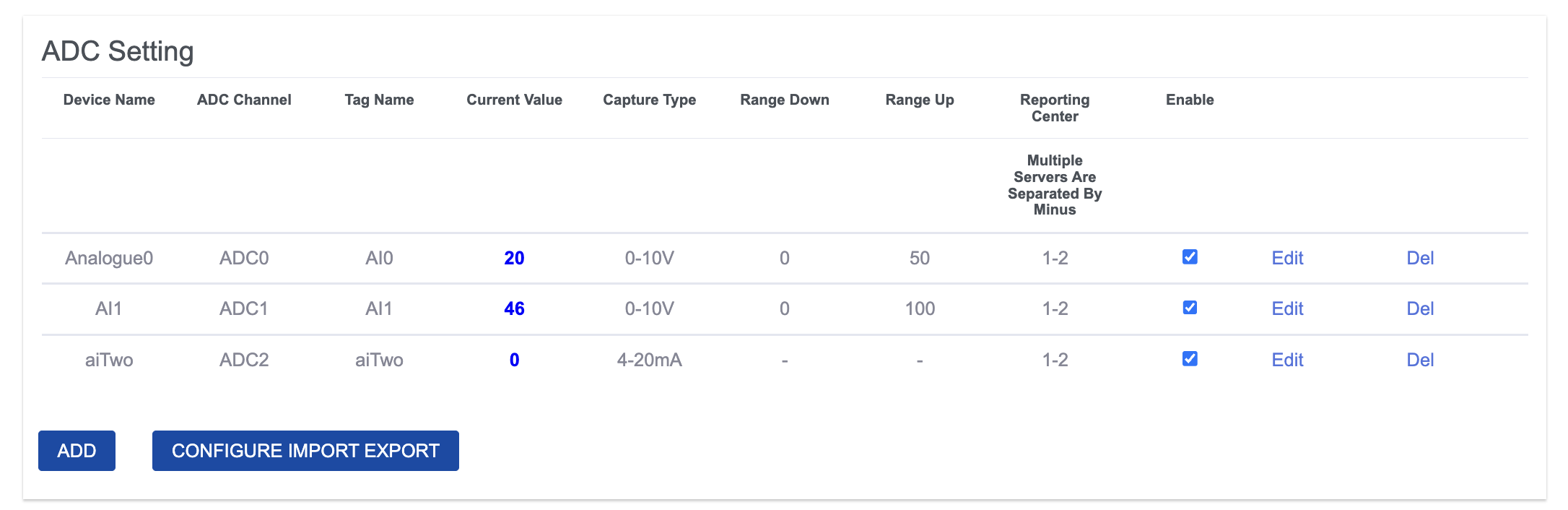
- Preview the current value collected from the southbound device for this rule.
- Edit the added rule.
- Delete the added rule.
- Add a new rule.
- Export or import the rules configuration as a CSV template file. This is useful for configuration backups and batch operations.
Add an ADC Setting Rule
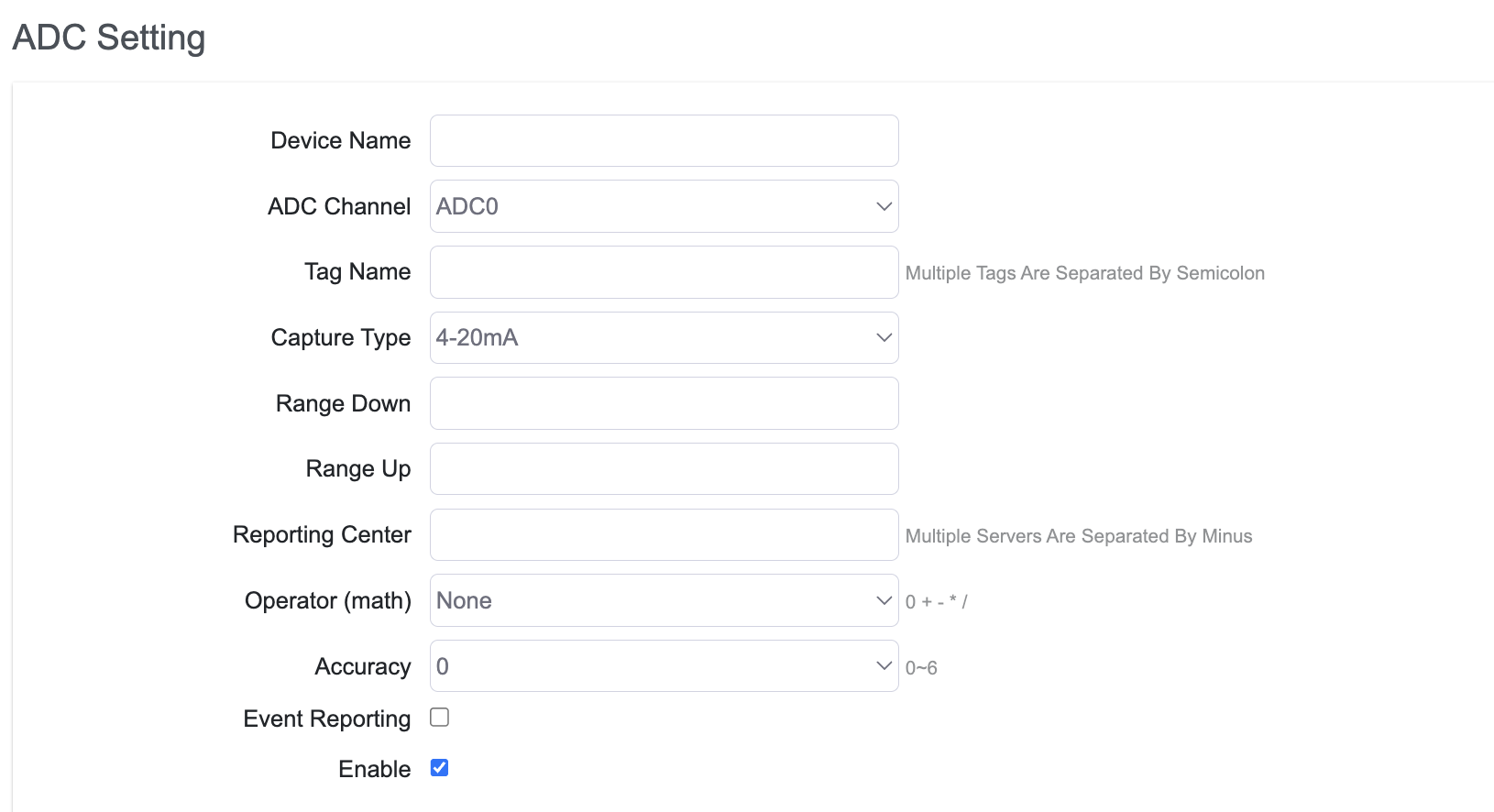
Click Add to create a new ADC setting rule.
-
Specify the southbound device name.
-
Configure the ADC channel to which the southbound device is connected.
noteThe NexusIM Gateway NXG3 provides three ADC channels:
ADC0,ADC1, andADC2. -
Configure the Tag Name for data converted from the southbound device.
-
Configure the analog input capture type:
4-20 mAor0-10 V. -
Configure the lower range value.
-
Configure the upper range value.
noteADC calculation is linear. For a
4-20 mAinput,K = (upper range - lower range) / (20 mA - 4 mA)and the calculated digital value is(analog current - 4 mA) * K. -
Specify the reporting center to which the collected data is reported. The number corresponds to Servers > Reporting Server (
1-5). -
Configure the operator and operand.
-
Configure the accuracy of the calculated value.
-
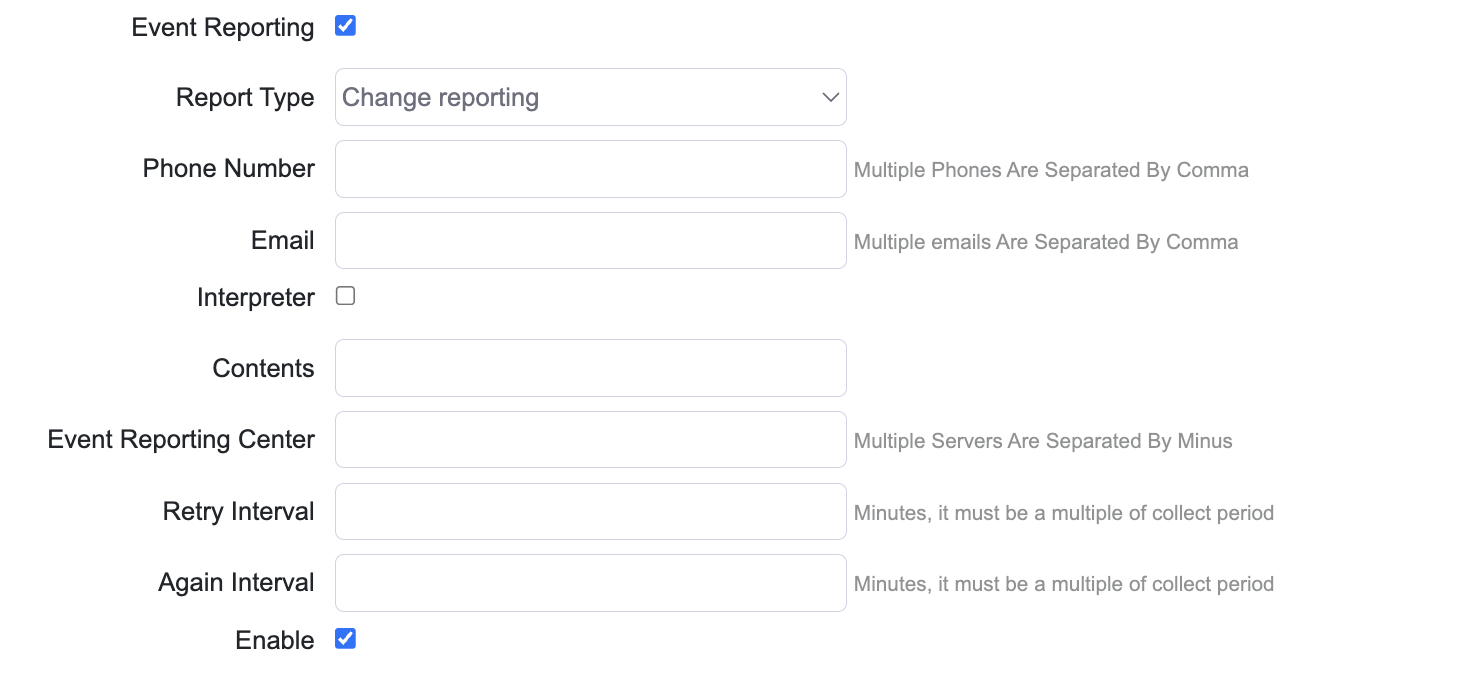
Enable or disable SMS and email reporting. A report is sent to the specified phone number and email address when the value changes or falls outside the configured range.
-
Enable or disable the rule.
DI Setting
DI (Digital Input) receives digital information from southbound devices, such as door sensors or switches. It has two states: High (1) or Low (0).
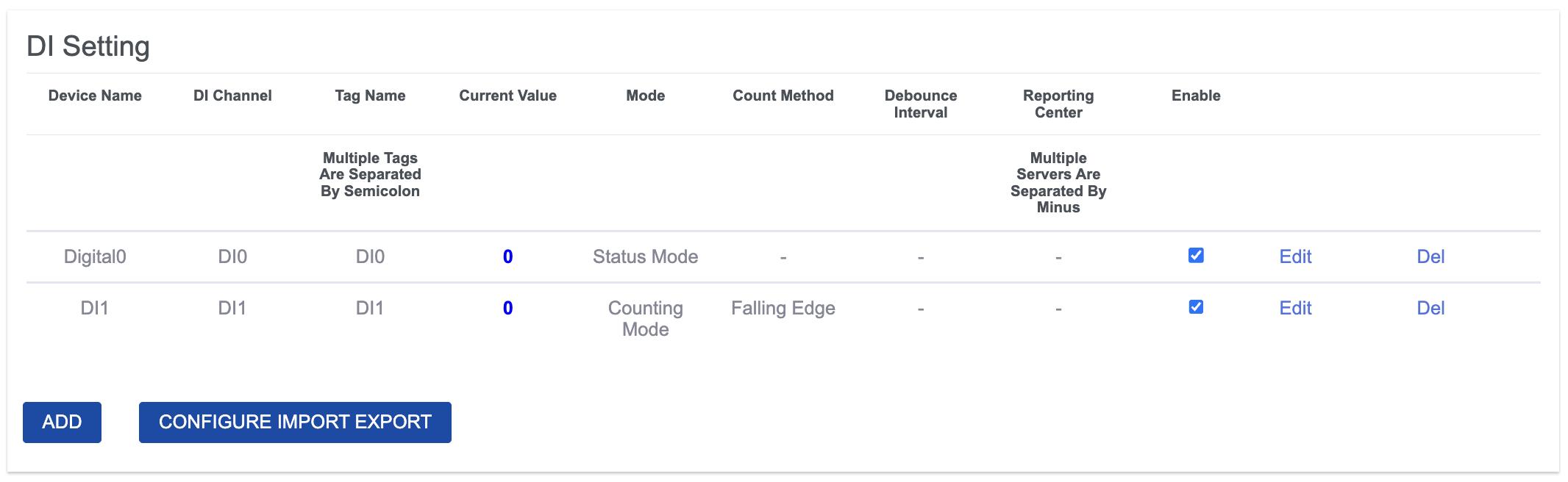
- Preview the current value collected from the southbound device for this setting.
- Edit the added setting.
- Delete the added setting.
- Add a new setting.
- Export or import the settings configuration as a CSV template file. This is useful for configuration backups and batch operations.
Add a DI Setting Rule
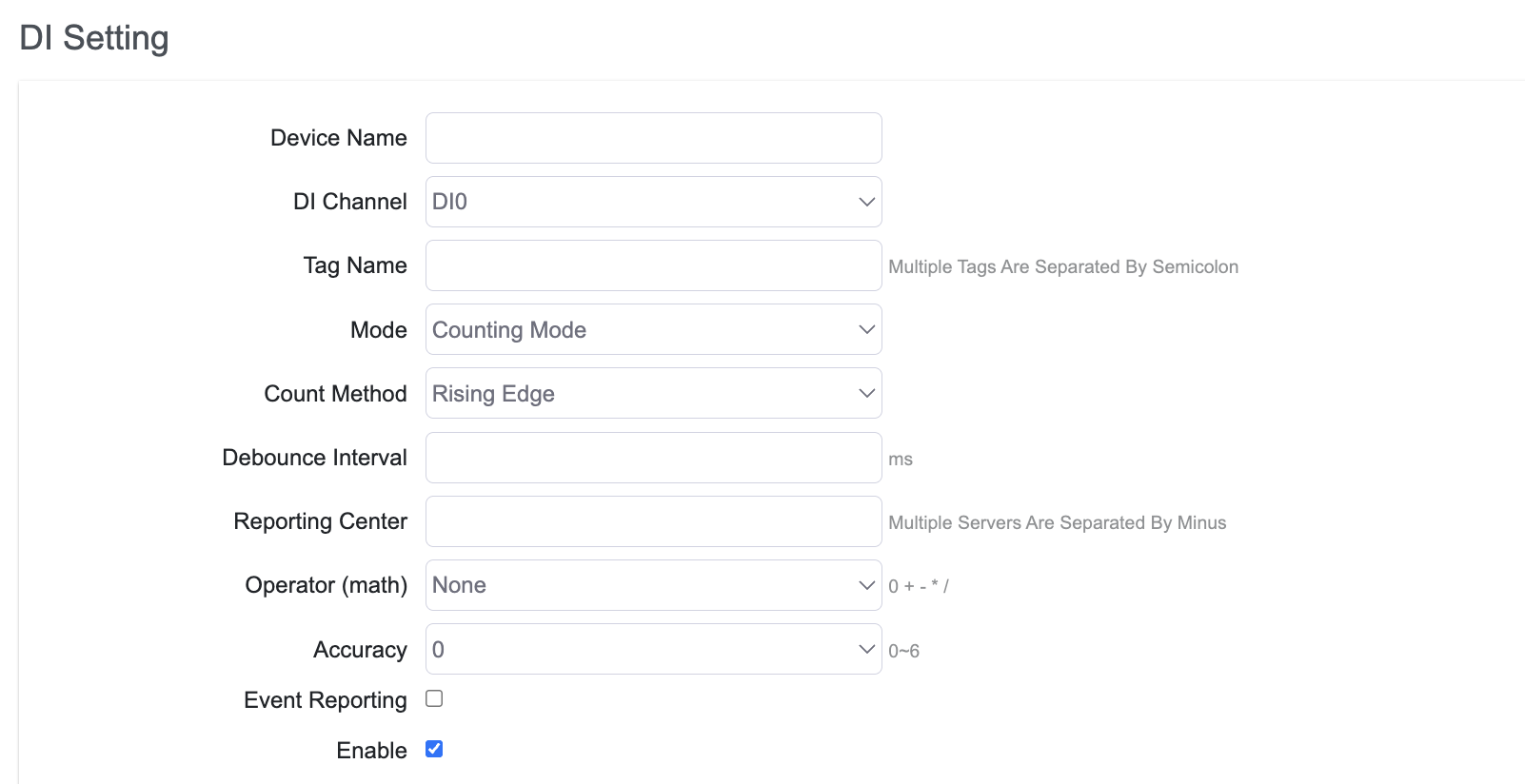
Click Add to create a new DI setting rule.
-
Specify the southbound device name.
-
Configure the DI channel to which the southbound device is connected.
noteThe NexusIM Gateway NXG3 provides six DI channels:
DI0,DI1,DI2,DI3,DI4, andDI5. -
Configure the Tag Name for data detected from the southbound device.
-
Configure the DI calculation mode:
Status Modedetects the current state:0(low) or1(high).Counting Modecounts DI changes during the collection period. ConfigureRising Edge(0 -> 1) orFalling Edge(1 -> 0) as the valid count method, and configure the debounce interval to filter unusual DI signals.
-
Specify the reporting center to which the collected data is reported. The number corresponds to Servers > Reporting Server (
1-5). -
Configure the operator and operand.
-
Configure the accuracy of the calculated value.
-
Enable or disable SMS and email reporting. A report is sent to the specified phone number and email address when the value changes or falls outside the configured range.
-
Enable or disable the rule.
DO Setting
DO (Digital Output) sends digital output from the NexusIM gateway to southbound devices, such as relays, lights, or buzzers. It has two states: Close (1) or Open (0), which control the on or off status of connected devices.
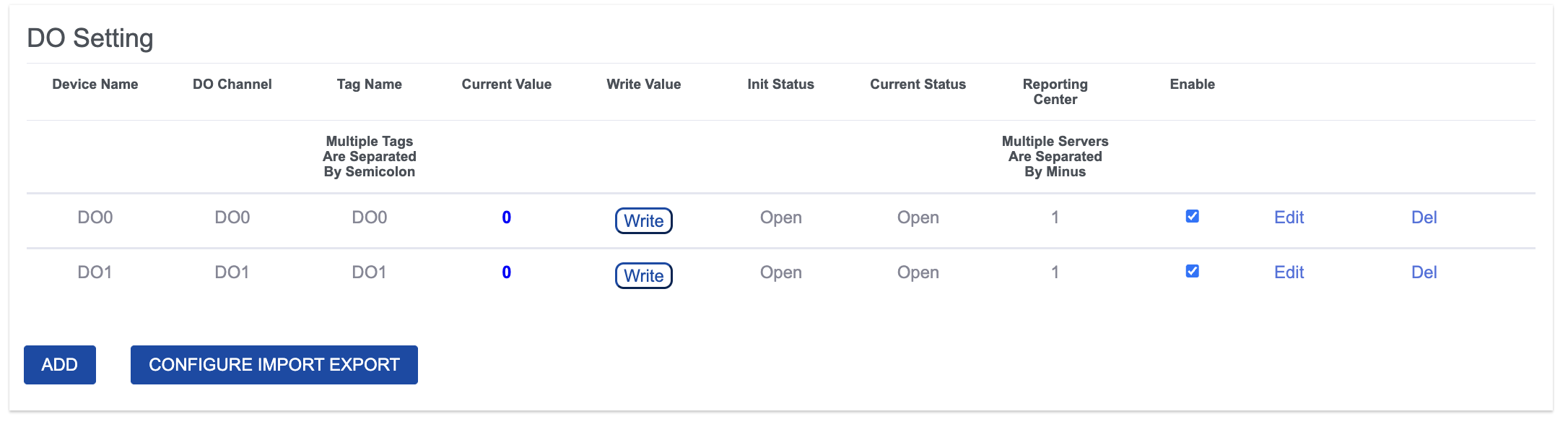
- Preview the current value collected from the southbound device for this setting.
- Edit the added setting.
- Delete the added setting.
- Add a new setting.
- Export or import the settings configuration as a CSV template file. This is useful for configuration backups and batch operations.
Add a DO Setting Rule
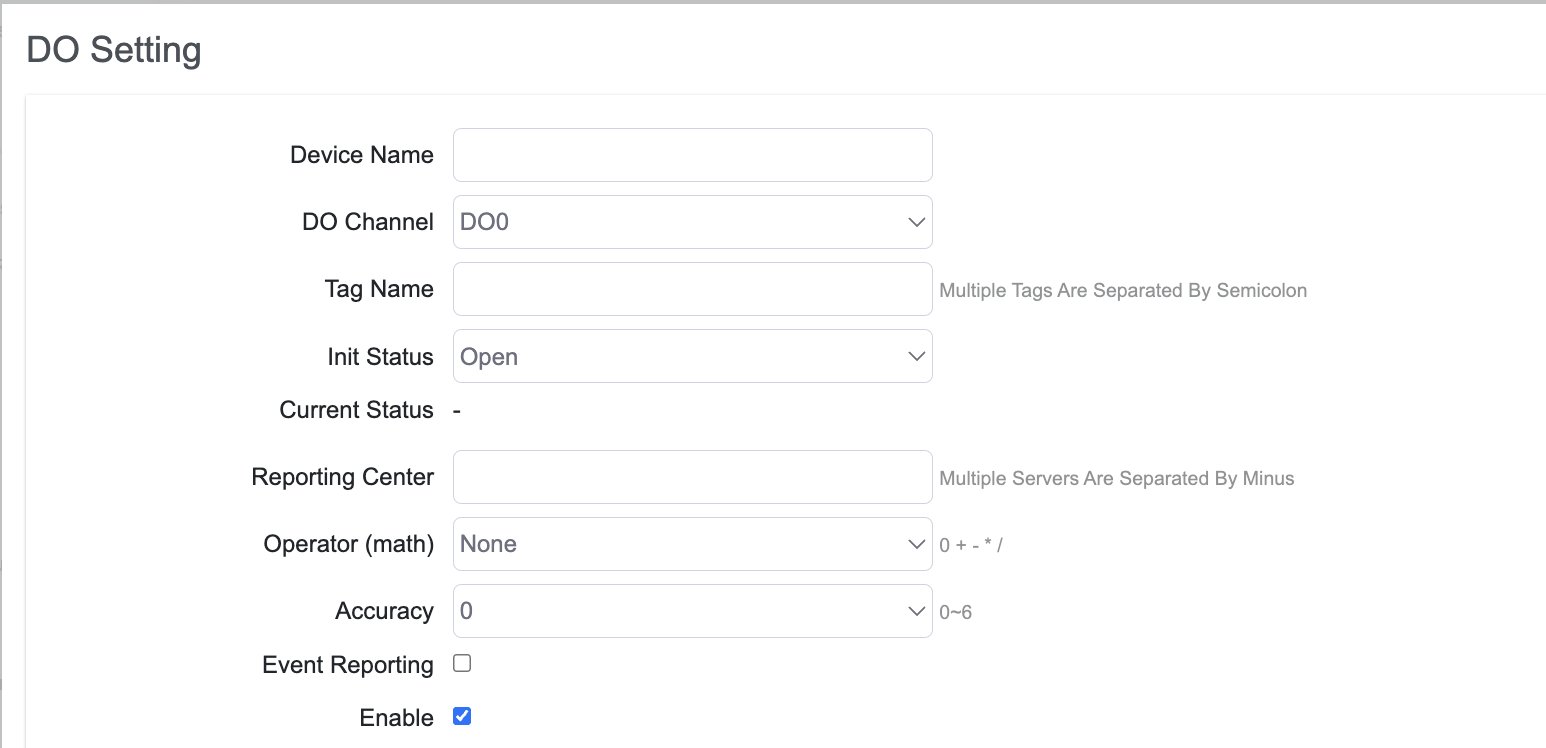
Click Add to create a new DO setting rule.
-
Specify the southbound device name.
-
Configure the DO channel to which the southbound device is connected.
noteThe NexusIM Gateway NXG3 provides six DO channels:
DO0,DO1,DO2,DO3,DO4, andDO5. -
Set the Tag Name for data detected from the southbound device.
-
Set the initial DO status:
OpenorClose. -
View the current DO status.
-
Specify the reporting center to which the collected data is reported. The number corresponds to Servers > Reporting Server (
1-5). -
Set the operator and operand.
-
Set the accuracy of the calculated value.
-
Enable or disable SMS and email reporting. A report is sent to the specified phone number and email address when the value changes or falls outside the configured range.
-
Enable or disable the rule.
The following example shows the event reporting configuration: